PRACTICE MANAGEMENT

DICOM Viewer

DICOM Viewer

Imaging directly in the patient record – open, view, and securely document DICOMs

Imaging directly in the patient record – open, view, and securely document DICOMs

With the integrated DICOM viewer in ClinicOS, you can display imaging data (e.g., CT, MRI, ultrasound) directly within the system—without external tools and without any media disruption. This ensures that imaging and documentation remain within a seamless workflow.

With the integrated DICOM viewer in ClinicOS, you can display imaging data (e.g., CT, MRI, ultrasound) directly within the system—without external tools and without any media disruption. This ensures that imaging and documentation remain within a seamless workflow.

Images clearly assigned to the patient and date

No more external viewers: Imaging directly in ClinicOS

Quick access to the appointment—no searching or exporting needed

The Problem

Separate DICOM data in daily practice

Separate DICOM data in daily practice

DICOM data is often separate from the patient record: external viewers, separate archives, cumbersome import/export. In everyday practice, this costs time, complicates preparation, and results in imaging not being properly documented in the patient’s course.

DICOM data is often separate from the patient record: external viewers, separate archives, cumbersome import/export. In everyday practice, this costs time, complicates preparation, and results in imaging not being properly documented in the patient’s course.

DICOM data is often separate from the patient record: external viewers, separate archives, cumbersome import/export. In everyday practice, this costs time, complicates preparation, and results in imaging not being properly documented in the patient’s course.

High time expenditure due to external viewers and separate storage

High time expenditure due to external viewers and separate storage


Complicated preparation due to cumbersome import and export

Complicated preparation due to cumbersome import and export


Incomplete documentation of imaging data

Incomplete documentation of imaging data


The Solution

DICOM Viewer

DICOM Viewer

ClinicOS integrates imaging into the patient record: DICOM files can be opened within the system and viewed in the context of the patient and appointment—quickly, clearly, and well-documented.
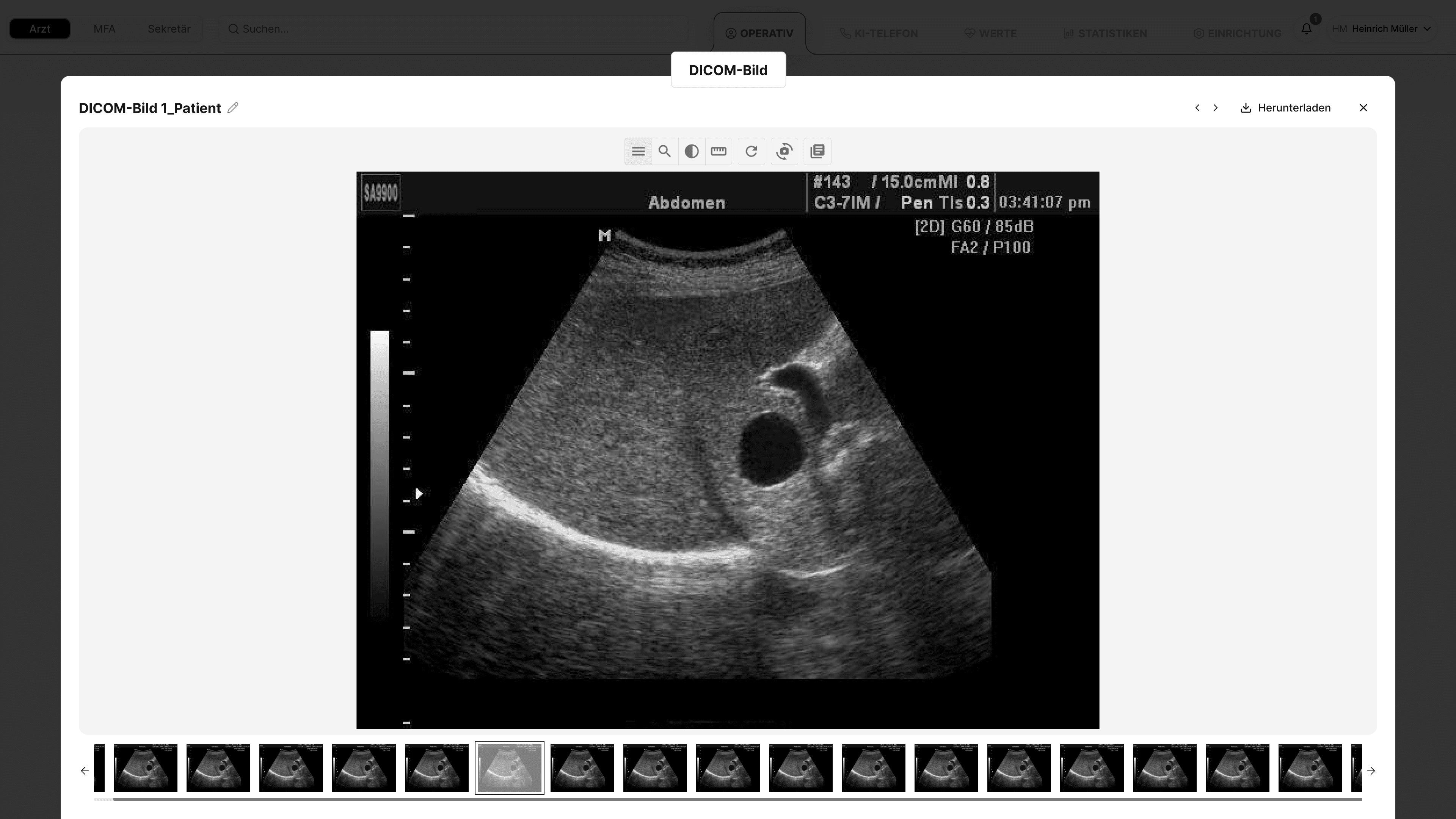
ClinicOS integrates imaging into the patient record: DICOM files can be opened within the system and viewed in the context of the patient and appointment—quickly, clearly, and well-documented.

Features

What the DICOM viewer specifically does for you
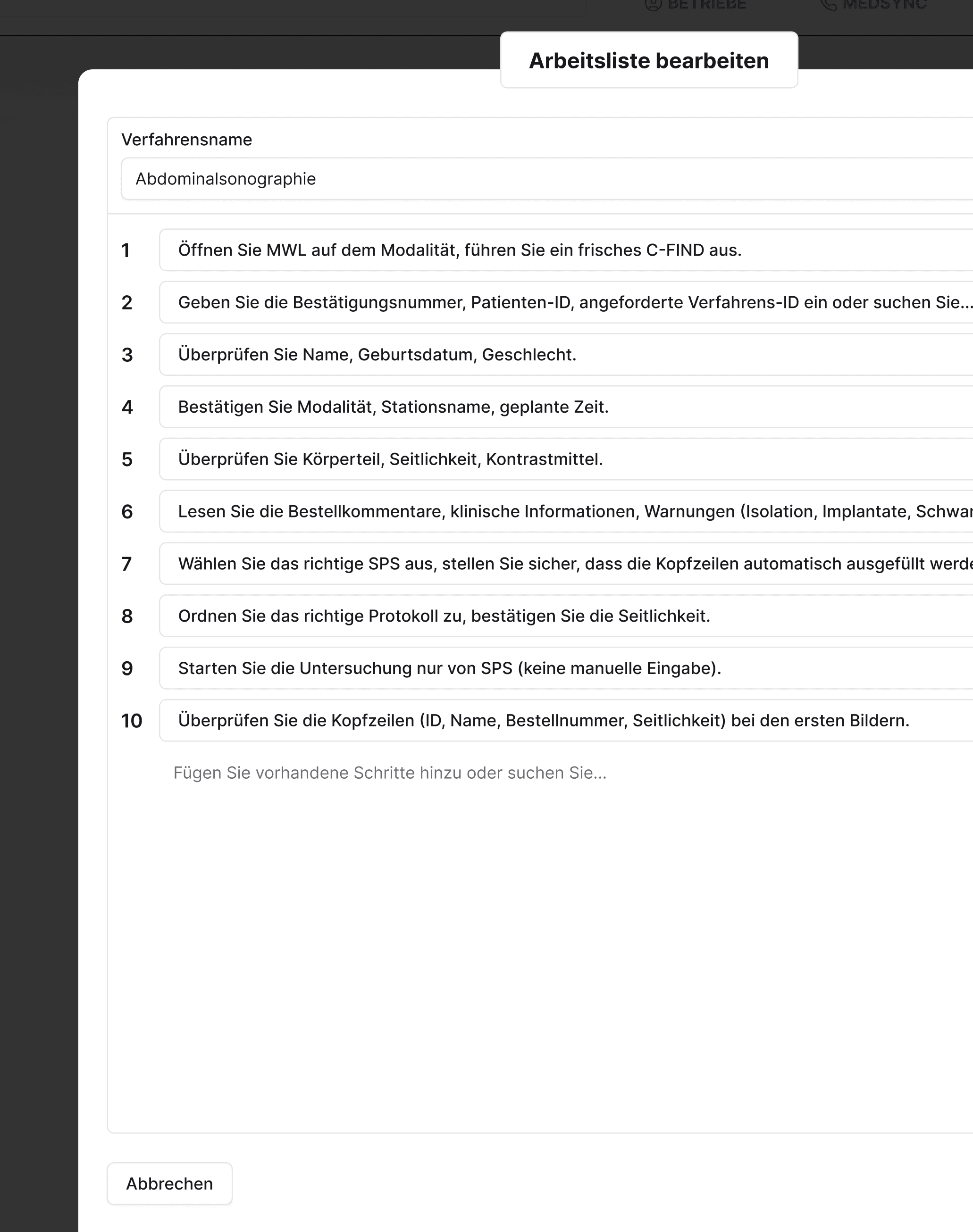
What the DICOM viewer specifically does for you
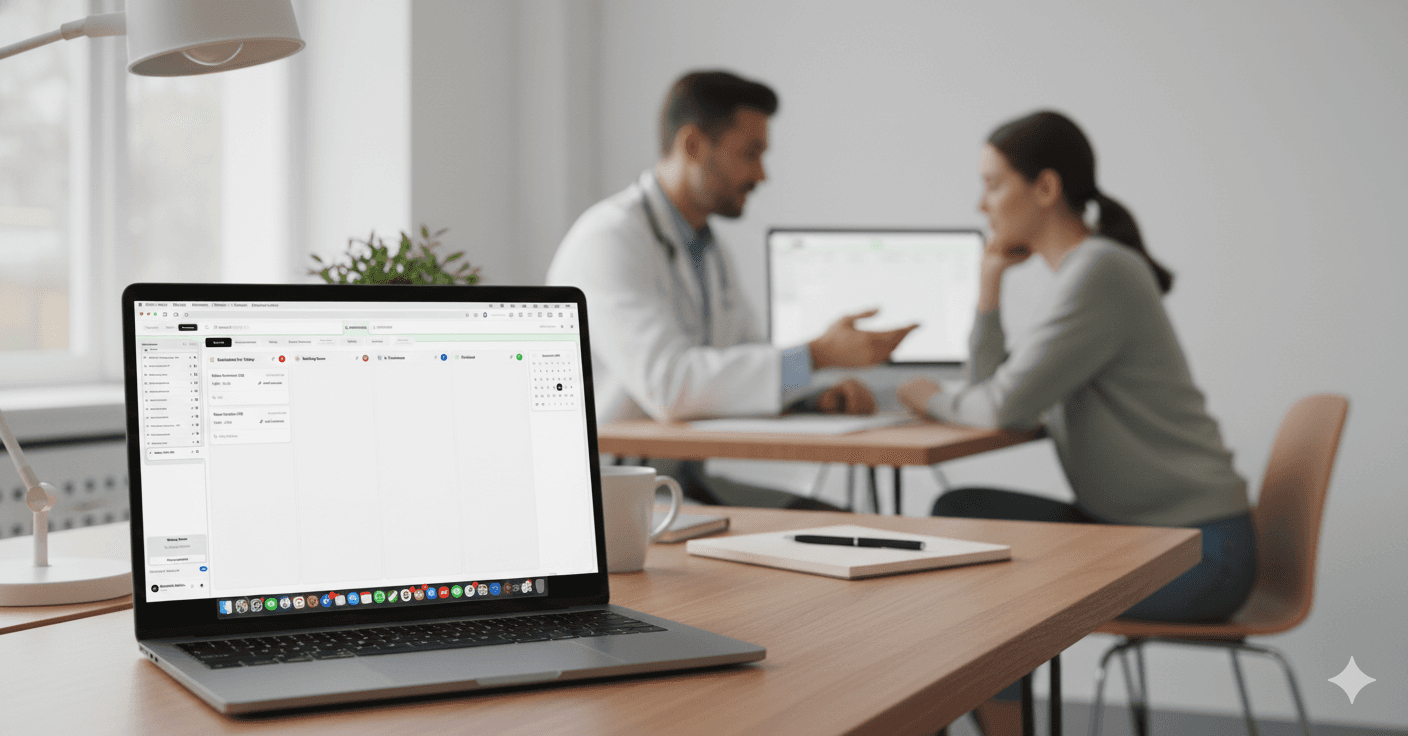
Assumption of relevant information

without changing tools

Assignment to patient and date

for a smooth process

Quick access during the appointment

Imaging immediately available

Quick access during the appointment

Imaging immediately available

Clear Representation

for series and sequences of images

Clear Representation

for series and sequences of images

Central Records

Imaging and documentation remain in the same system

The Result & How It Works

Fewer tool changes – faster appointment processing and cleaner records

You will find imaging where you need it: in the patient context. This enhances preparation, documentation, and team communication.

Below, we show how it works in everyday practice in three steps:

Step 1 - Add DICOM

Image data is assigned to the patient.

Step 2 - Open in Viewer
Step 3 - Documented in the course
Ein Bild der Budget-Benutzeroberfläche von Freelio

The Result & How It Works

Fewer tool changes – faster appointment processing and cleaner records

You will find imaging where you need it: in the patient context. This enhances preparation, documentation, and team communication.

Below, we show how it works in everyday practice in three steps:

Ein Bild der Budget-Benutzeroberfläche von Freelio
Step 1 - Add DICOM

Image data is assigned to the patient.

Step 2 - Open in Viewer
Step 3 - Documented in the course

The Result & How It Works

Fewer tool changes – faster appointment processing and cleaner records

You will find imaging where you need it: in the patient context. This enhances preparation, documentation, and team communication.

Below, we show how it works in everyday practice in three steps:

Ein Bild der Budget-Benutzeroberfläche von Freelio
Step 1 - Add DICOM

Image data is assigned to the patient.

Step 2 - Open in Viewer
Step 3 - Documented in the course

For Private Practices

Why this is especially relevant for private practices

Why this is especially relevant for private practices

Why this is especially relevant for private practices

More efficient processes in imaging for daily practice

Better preparation before consultations and examinations

Professional workflow without external tools and media disruptions

FAQ

Find answers to frequently asked questions about features, security, and the use of ClinicOS.

Are the images properly documented in the patient file?
Do I need to install external viewers or programs?
Which image data can I open in the viewer?

FAQ

Find answers to frequently asked questions about features, security, and the use of ClinicOS.

Are the images properly documented in the patient file?
Do I need to install external viewers or programs?
Which image data can I open in the viewer?