Medical AI Assistant

AI Document Import

AI Document Import

Upload findings – and automatically document them in a structured manner in the patient's medical record

Upload findings – and automatically document them in a structured manner in the patient's medical record

ClinicOS extracts uploaded documents using OCR, identifies relevant medical content (including lab values), and imports it in a structured manner with dates into the patient record. No manual typing, no copy-paste.

ClinicOS extracts uploaded documents using OCR, identifies relevant medical content (including lab values), and imports it in a structured manner with dates into the patient record. No manual typing, no copy-paste.

Findings digitized and neatly documented in minutes

Lab values and relevant data automatically identified

Less effort for medical assistants and doctors – fewer transcription errors

The Problem

Extensive processing of previous findings

Extensive processing of previous findings

Previous findings come as PDFs, scans, or photos. The team needs to read the contents, extract important values, and laboriously transfer them to the record. This results in media disruptions, loss of time, and errors – especially with lab values and longer reports.

Previous findings come as PDFs, scans, or photos. The team needs to read the contents, extract important values, and laboriously transfer them to the record. This results in media disruptions, loss of time, and errors – especially with lab values and longer reports.

Previous findings come as PDFs, scans, or photos. The team needs to read the contents, extract important values, and laboriously transfer them to the record. This results in media disruptions, loss of time, and errors – especially with lab values and longer reports.

Previous findings are available in different formats and must be read and transferred manually.

Previous findings are available in different formats and must be read and transferred manually.


Important values must be manually written out and entered into the file.

Important values must be manually written out and entered into the file.


Media disruptions lead to loss of time and errors, especially with lab results and extensive findings

Media disruptions lead to loss of time and errors, especially with lab results and extensive findings


The Solution

AI Document Import

AI Document Import

With ClinicOS, you can easily upload documents. OCR and AI extract medically relevant content, accurately categorize it, and document it in the patient file in a structured manner – including date and history.
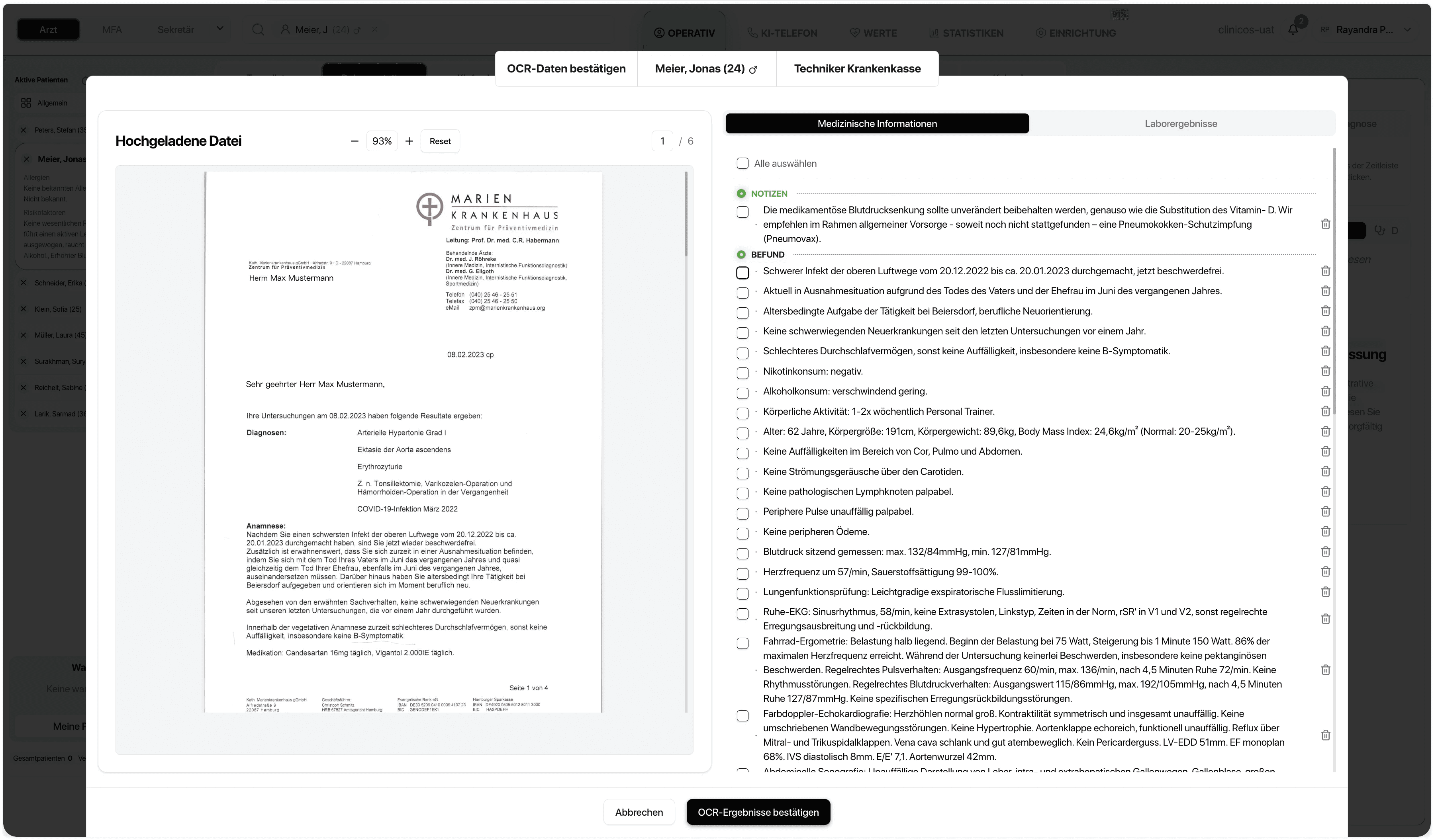
With ClinicOS, you can easily upload documents. OCR and AI extract medically relevant content, accurately categorize it, and document it in the patient file in a structured manner – including date and history.

Features

What the AI document import specifically does for you
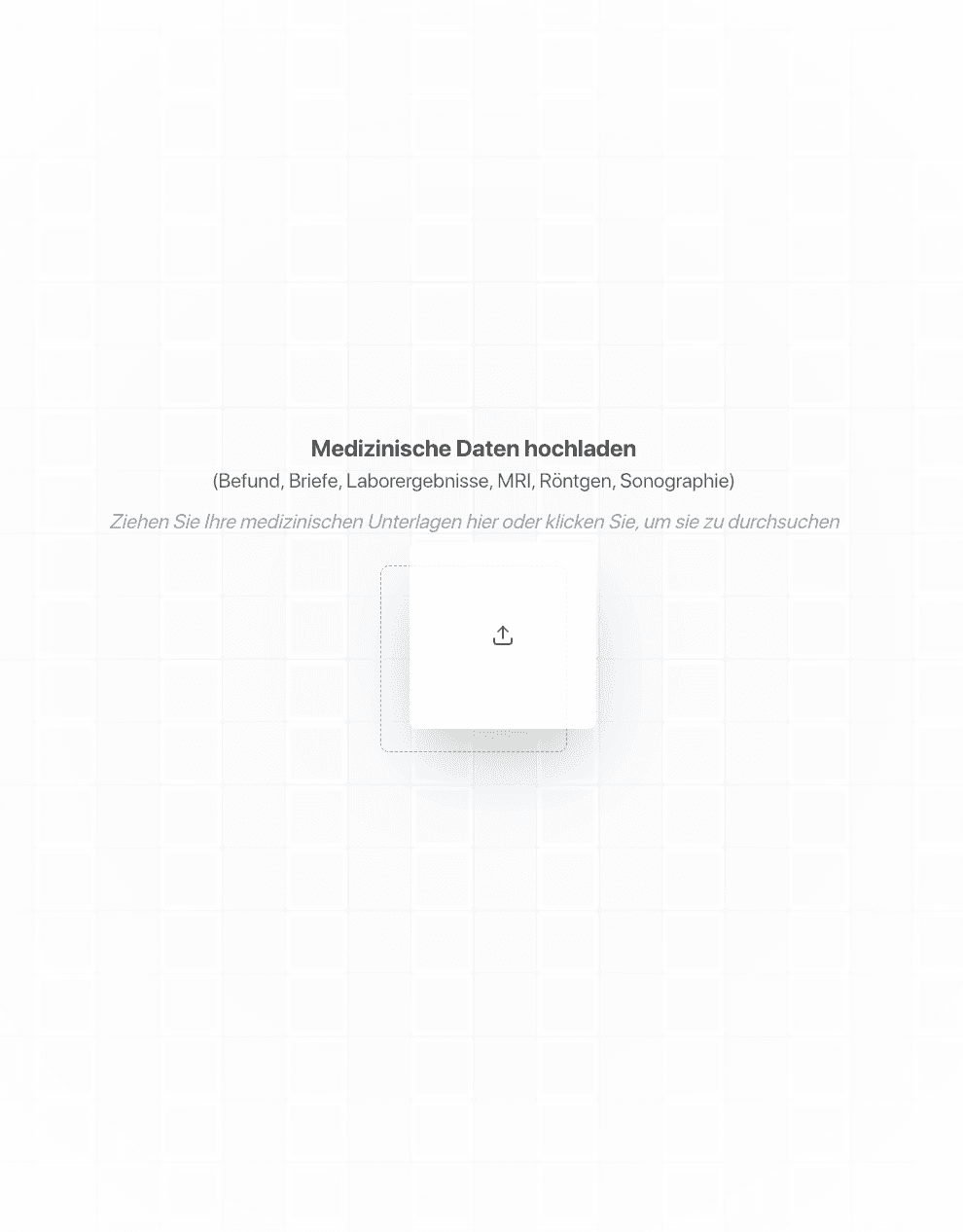
What the AI document import specifically does for you
Date & History

Values are documented along with the respective document date in the record.

Date & History

Values are documented along with the respective document date in the record.

Upload of documents

(e.g., old findings, medical reports, laboratory reports, imaging findings)

Upload of documents

(e.g., old findings, medical reports, laboratory reports, imaging findings)

Identifying Relevant Content

Diagnoses, Medication, Findings Reports, Laboratory Values, Measurements

Structured Handover

Into the patient record instead of unstructured file attachments

Structured Handover

Into the patient record instead of unstructured file attachments

OCR Reading

Even in scans and photos

OCR Reading

Even in scans and photos

Fewer Errors

Through automated transmission instead of manual typing

Fewer Errors

Through automated transmission instead of manual typing

The Result & How It Works

Previous findings are not just filed – they are directly usable in the record

Instead of searching through PDFs, view relevant information structured in the timeline. This saves time, improves preparation, and reduces transcription errors.

Below, we show how it works in everyday practice in three steps:

Step 1 - Upload document

Add finding/report as PDF, scan, or photo.

Step 2 - Process OCR & AI
Step 3 - Available in the file
Ein Bild der Budget-Benutzeroberfläche von Freelio

The Result & How It Works

Previous findings are not just filed – they are directly usable in the record

Instead of searching through PDFs, view relevant information structured in the timeline. This saves time, improves preparation, and reduces transcription errors.

Below, we show how it works in everyday practice in three steps:

Ein Bild der Budget-Benutzeroberfläche von Freelio
Step 1 - Upload document

Add finding/report as PDF, scan, or photo.

Step 2 - Process OCR & AI
Step 3 - Available in the file

The Result & How It Works

Previous findings are not just filed – they are directly usable in the record

Instead of searching through PDFs, view relevant information structured in the timeline. This saves time, improves preparation, and reduces transcription errors.

Below, we show how it works in everyday practice in three steps:

Ein Bild der Budget-Benutzeroberfläche von Freelio
Step 1 - Upload document

Add finding/report as PDF, scan, or photo.

Step 2 - Process OCR & AI
Step 3 - Available in the file

For Private Practices

Why this is especially relevant for private practices

Why this is especially relevant for private practices

Why this is especially relevant for private practices

Faster preparation for appointments and progress discussions

Relief for medical assistants: less manual data entry and fewer follow-up inquiries

Better data foundation: Laboratory values and findings details over time instead of in file attachments

FAQ

Find answers to frequently asked questions about features, security, and usage of ClinicOS.

Who decides what is included in the file?
Does this also work with scans and photos?
What documents can I import?

FAQ

Find answers to frequently asked questions about features, security, and usage of ClinicOS.

Who decides what is included in the file?
Does this also work with scans and photos?
What documents can I import?